A widget puts a Bible verse on a screen you already look at, so you can read it without opening an app. This guide shows the exact steps for the iPhone Home Screen and Lock Screen. We use Lamp, the Bible verse app we make, as the example. Other widget apps are added the same way: you search for that app's name instead.
Before you start
Install Lamp from the App Store and open it once. When you set it up, you tell Lamp which feelings or topics you'd like verses for, such as anxiety, strength or hope. The widget picks its verses from those.
Add a Bible verse widget to your Home Screen
- Touch and hold an empty area of your Home Screen until the apps jiggle.
- Tap Edit, then Add Widget.
- Search for Lamp.
- Choose a size: small, medium or large.
- Tap Add Widget.
The small widget shows the verse and its reference. The medium and large widgets have room for two small buttons as well (on iOS 17 and later): Amen, for when you've prayed over the verse, and an arrow that moves on to the next verse.
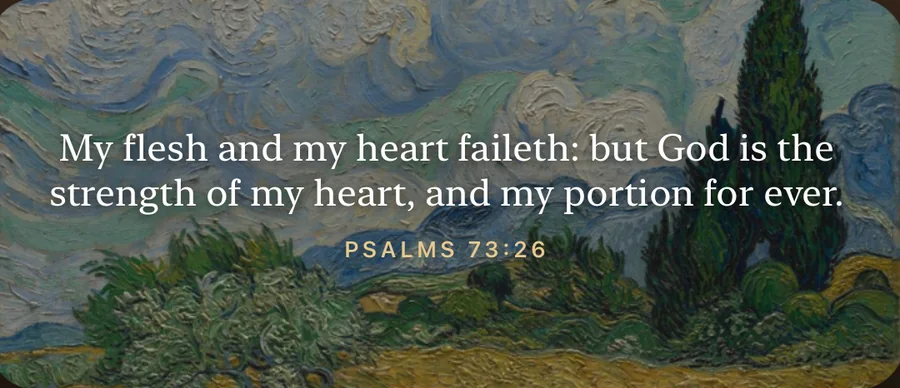
That's the medium widget with Wheat Field with Cypresses by Vincent van Gogh behind the verse. Lamp also has a small Prayer Streak widget, a flame with the number of days you've said Amen in a row.
Each verse widget has a Topic setting. When you edit the widget you can pick one topic for it, or leave it empty and it follows the topics you chose in the app. This is handy if you want one widget for peace and another for courage.
Add a Bible verse to your Lock Screen
- Touch and hold the Lock Screen.
- Tap Customize.
- Tap Lock Screen.
- Tap the area below the clock.
- Choose Lamp.
Lamp's verse widget comes in two Lock Screen shapes: a rectangle that shows the verse and its reference, and a single line of text. The round Prayer Streak widget fits there too.
Why Lock Screen widgets are small
Apple decides how Lock Screen widgets look. iOS keeps them small and frosted, and it doesn't show an app's own background behind them, so a painting or a color can't go inside the widget. Every Bible verse app works within the same limits.
In practice, this means short verses read best on the Lock Screen. Psalm 56:3 ("What time I am afraid, I will trust in thee") fits comfortably. A long verse like Isaiah 41:10 is easier to read on a medium or large Home Screen widget. Our list of short verses for your Lock Screen has 20 that fit well.
Put a painting behind your Lock Screen verse
Since the widget itself can't show art, Lamp lets you save the painting as your wallpaper instead. The verse then sits in its widget just below the clock, over the painting.
- In Lamp, open Settings, then Widget Studio.
- Tap Lock Screen at the top.
- Pick a background, such as Monet's Water Lilies or Bierstadt's Sunrise on the Matterhorn.
- Tap Save as Lock Screen Wallpaper. The first time, Lamp asks for permission to add photos. This permission only lets Lamp add an image to your library. It can't see your photos.
- Open Photos, choose the wallpaper, tap Share, then Use as Wallpaper.
- Add the Lamp widget below the clock with the steps above.
The saved wallpaper is the painting alone, with no words on it, so the clock and the verse sit on a clean background. The painting stays the same while the verse in the widget changes.
What else you can change in Widget Studio
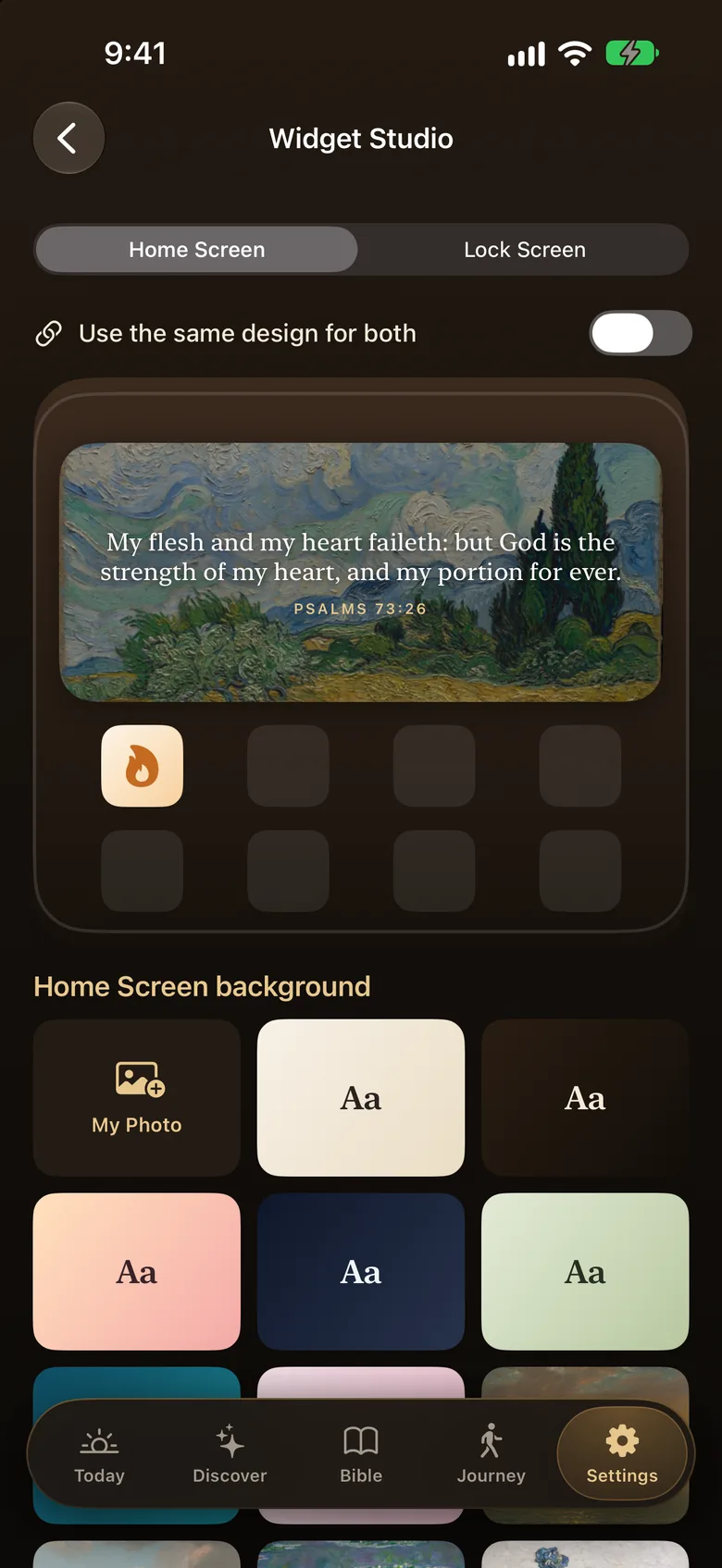
Widget Studio is where you design the widget. You'll find it in Lamp under Settings. At the top you switch between the Home Screen and Lock Screen designs, and a switch called Use the same design for both keeps them matched. Below that you can change:
- the background: a painting, a plain color theme, or one of your own photos
- the font, the text size and whether the verse is centered or aligned left
- how dark the painting is behind the words, so the verse stays easy to read
- how often a new verse appears: once a day, every 6 hours or every hour
There are 32 paintings, all public-domain works from The Met and the Art Institute of Chicago, by Van Gogh, Monet, Hokusai, Bierstadt and others. Six come free, including Van Gogh's Irises and Monet's Water Lilies. Lamp Pro opens the rest, along with every font. If your Pro plan ever ends, the widget keeps working and switches to a free design.
If the widget doesn't update
If the widget seems stuck on an old verse, open Lamp once, then remove the widget and add it again.
If saving the wallpaper fails, Lamp doesn't have permission to add photos. Allow it in your iPhone's Settings under Privacy, Photos, then try again.
Where to go next
If you'd like a verse to start from, the verse of the day changes every morning, and the Bible verses by topic page has verses for 36 feelings and needs. To keep a widget for when worry comes, start with Bible verses about anxiety.
Questions people ask
How do I put a Bible verse on my iPhone Lock Screen?
Install a Bible verse app with a Lock Screen widget, such as Lamp. Then touch and hold your Lock Screen, tap Customize, tap Lock Screen, tap the area below the clock and choose the app. The verse shows in a small widget under the time and changes on the schedule the app uses.
Why is the Bible verse widget on my Lock Screen so small?
Apple keeps Lock Screen widgets small and frosted, so no app can make them bigger or put a painting inside them. Short verses read best there. If you want art behind the verse, Lamp's Widget Studio can save a painting as your wallpaper, and the verse sits on top of it.
Is the Lamp widget free?
Yes. Lamp is free to download, and the Home Screen and Lock Screen widgets work on the free plan in the free designs, which include six of the paintings. Lamp Pro adds all 32 paintings and every font. The yearly plan starts with a 7-day free trial.
How often does the verse on the widget change?
In Lamp you choose. Open Settings, then Widget Studio, and under New verse pick once a day, every 6 hours or every hour. On iOS 17 and later, the medium and large Home Screen widgets also have an arrow button that moves to the next verse whenever you like.